Author: oowoah

  • Could School Trips Reach Places a Coach Cannot?

    Could School Trips Reach Places a Coach Cannot?

    A school coach has limits: distance, time, cost and the places it can reach. A remote visit could introduce pupils to a workshop, a research setting or a guide somewhere far away, without pretending to replace every benefit of going in person.

    Begin with the lesson

    Choose what pupils should understand or be able to discuss afterwards. A dramatic location can be interesting, but the visit still needs a purpose. Give the host enough information about the group’s age and prior knowledge to explain things at the right level.

    Make room for questions

    A live connection can let pupils ask something that a recording would never anticipate. Prepare a few questions while leaving space for curiosity. Agree how the teacher will manage turn-taking and what happens if the connection fails.

    Choose equipment that suits the group

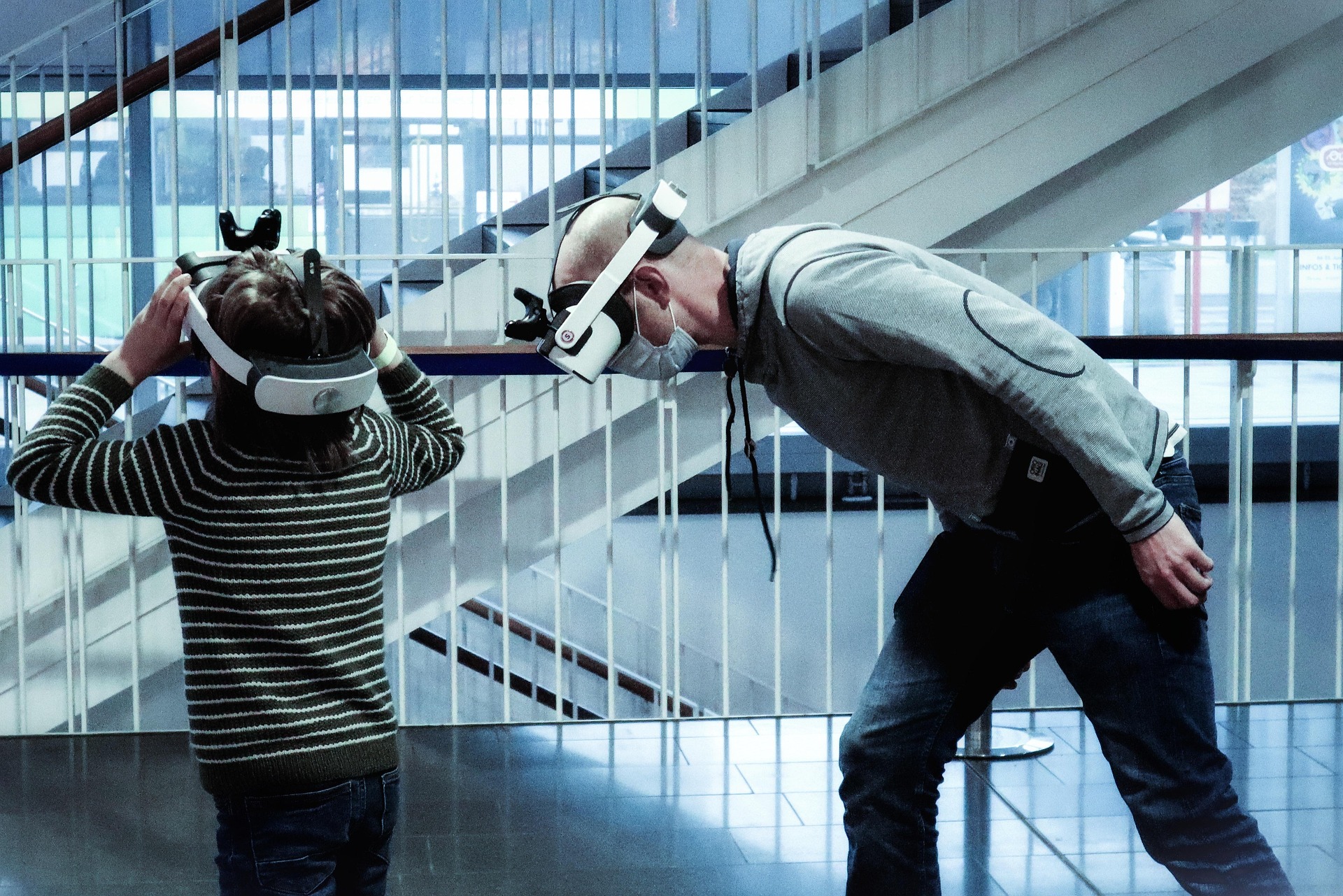
    A headset experience may suit some activities; a classroom screen may suit others. Consider accessibility, device suitability, supervision and the available alternatives. Test the setup before the lesson rather than making pupils wait through troubleshooting.

    Keep the school in control

    Arrange safeguarding, consent and any recording plans through the school’s own procedures. Follow the visit with discussion or a practical task. Remote access can add a useful perspective when it serves the learning, rather than simply making the trip sound futuristic.

    Curious about bringing people together remotely? Explore Live VR Events with OowOah.

  • One 360° Camera. A Whole New Audience.

    One 360° Camera. A Whole New Audience.

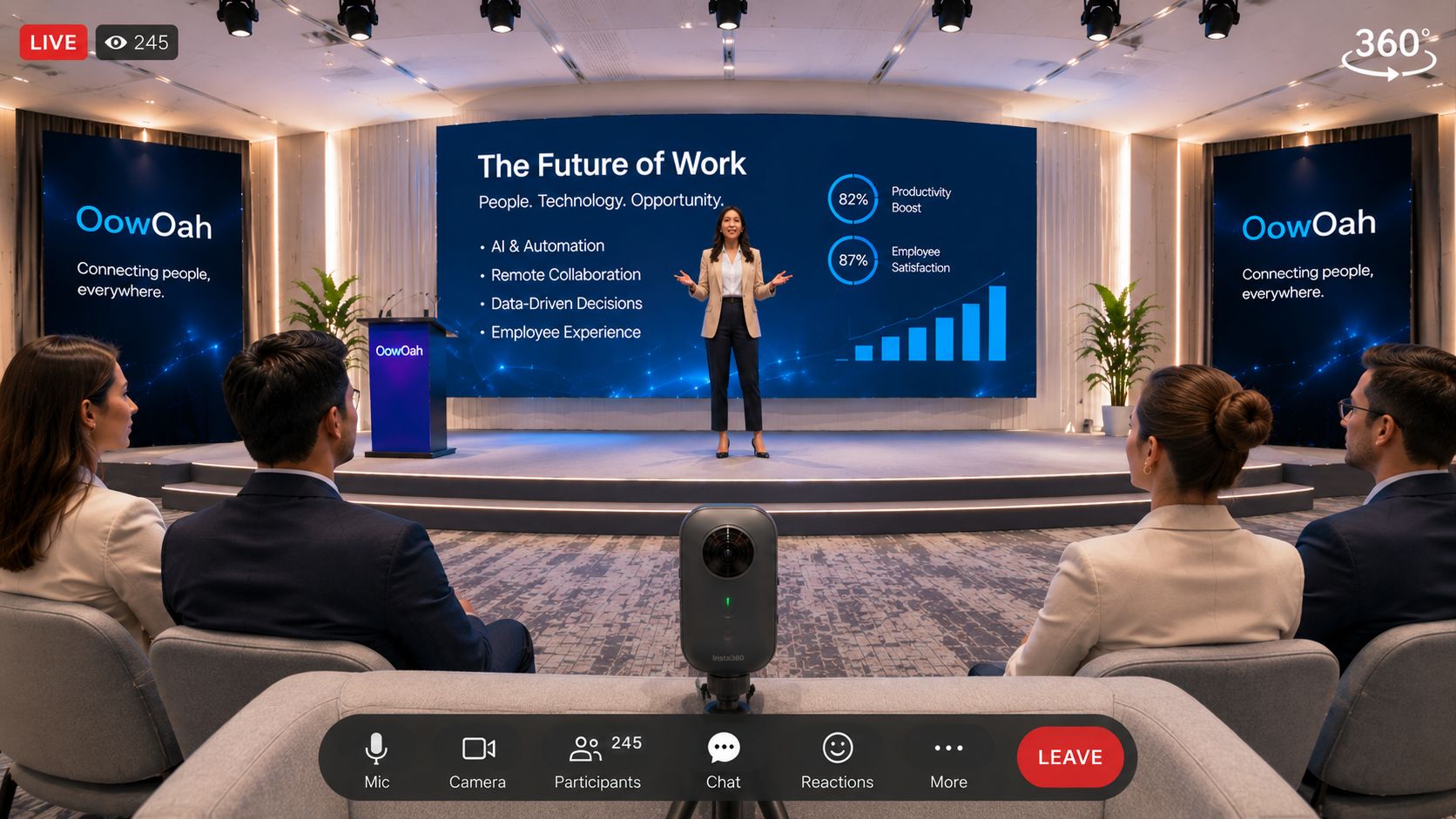
    A compatible 360° camera can transform the way people experience a live presentation. OowOah is designed around that simple idea: bring a camera into the room and let remote audiences look around as the event unfolds.

    Capture the room, not just the stage

    A standard video feed points in one direction. A 360° camera records a surrounding view, helping viewers feel closer to the setting, the speaker and the atmosphere.

    Meet the Panox camera

    The Panox 360° camera is one example of the type of equipment that can be used for immersive capture. Camera suitability, streaming setup and connection quality should be checked before an event.

    Make your content go further

    From talks and demonstrations to discussions and performances, a 360° view opens up new presentation possibilities without requiring a huge production crew.

    OowOah speaker registration opens 10 November 2026. Think about what your audience could experience through your camera.

  • How Do You Set Up a Small Huddle Room on a Budget?

    How Do You Set Up a Small Huddle Room on a Budget?

    A useful huddle room is a small space where a few people can meet without complicated setup. Keep the budget focused on clear sound, an appropriate view and easy joining. The cheapest shopping basket is not always the lowest-cost room to operate.

    Define the room before shopping

    List the usual number of local participants and the service they use. Check seating, room noise, power and connectivity. Decide whether a laptop-based arrangement is sufficient or a dedicated room system is justified.

    Reuse suitable equipment

    An existing display and computer may reduce the initial purchase cost if they meet the requirements. Test them with the intended camera and audio. Do not count equipment as suitable only because the connectors happen to fit.

    Prioritise sound and usability

    Try the seats furthest from the microphone and ask a remote tester to judge the result. Choose a simple way to connect and show material. A single well-matched conference device can be easier to manage than several untested peripherals.

    Write down the full budget

    For illustration, you could set an internal equipment allowance of £600 and a separate £200 setup allowance, making an £800 planning budget before subscriptions and any applicable tax. These are hypothetical allowances, not supplier prices or an OowOah quote. Replace them with actual compatible equipment and installation quotations.

    Official references, checked 16 October 2026: Microsoft Teams Rooms, Zoom Rooms.

    Related guide: What Is the Best Online Meeting Platform?.

  • How Much Data Does a One-Hour Video Call Use?

    How Much Data Does a One-Hour Video Call Use?

    There is no single data figure for every one-hour video call. Usage varies with resolution, the views you receive, shared content and how the service adapts to the connection. For a useful estimate, consider both uploaded and downloaded data.

    Use the units correctly

    Bandwidth is a rate, usually shown in megabits per second, while data allowances are commonly measured in gigabytes. At a constant combined rate of 1 Mbps for one hour, the arithmetic gives approximately 0.45 GB in decimal units. That is an illustrative calculation, not a measured Zoom or Teams session.

    Include both directions

    If a device averaged 1 Mbps uploading and 1 Mbps downloading throughout the hour, the combined estimate would be around 0.9 GB. Recommended connection speeds are not guaranteed average usage; a meeting can adapt and consume a different amount.

    Reduce usage where appropriate

    Consider audio-only attendance, fewer incoming video views or lower video quality when the service allows it and the task still works. Pause unnecessary background transfers. Check whether other devices share a mobile hotspot’s data allowance.

    Measure a representative meeting

    Use your device or network’s data counters to compare a controlled test, allowing for other traffic. Review the provider’s current requirements before planning connectivity. Conventional video figures should not be assumed to apply to live 360° VR streaming, which needs its own delivery assessment.

    Combined average rate Illustrative data in one hour
    0.5 Mbps 0.225 GB
    1 Mbps 0.45 GB
    2 Mbps 0.9 GB
    4 Mbps 1.8 GB

    Official references, checked 16 October 2026: Zoom system requirements.

    Related guide: What Is the Best Online Meeting Platform?.

  • How Do You Stop Echo on Teams and Zoom Calls?

    How Do You Stop Echo on Teams and Zoom Calls?

    Echo often happens when meeting sound is picked up and sent back through a microphone. Start by identifying the audio loop rather than changing every setting at once. A short, systematic check is easier for the group to follow.

    1 Check for two nearby audio connections

    If a laptop and phone have both joined with speakers and microphones active in the same room, disconnect one audio route. Muting only a microphone may not remove the unwanted speaker output. Keep one intended audio setup for each location.

    2 Try a suitable headset

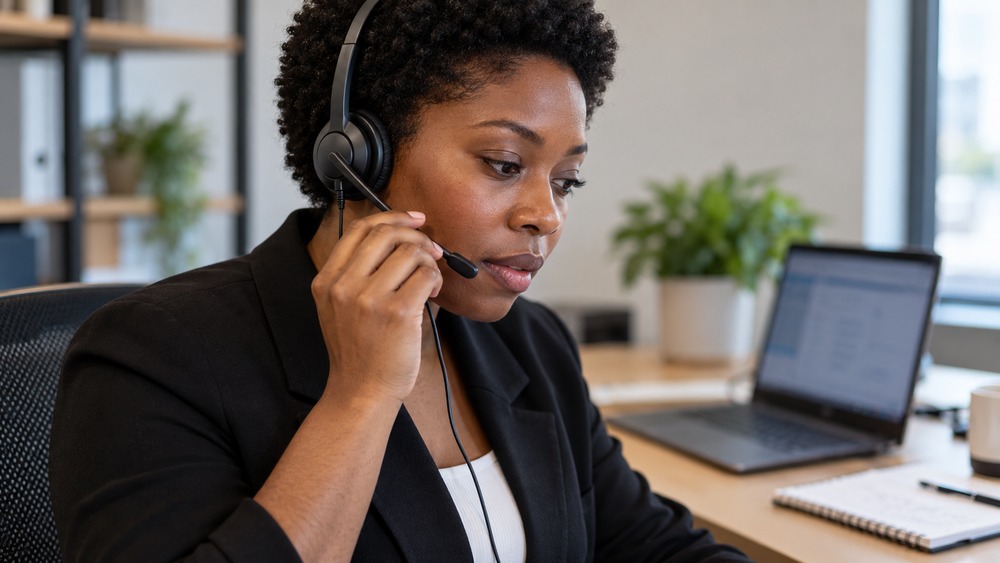
    A headset can reduce the amount of speaker sound reaching the microphone. Check that the meeting app is using the headset for both input and output. Do not assume plugging it in changed the selected devices automatically.

    3 Check the room and sound level

    Lower excessively loud speakers and move the microphone away from them. If several people share a room, use an appropriate conference audio arrangement. Ask participants to test one location at a time to help identify where the return sound starts.

    4 Test the selected devices

    Use the service’s audio settings and any available test function. Teams’ device options and Zoom’s echo guidance are linked below. Avoid repeatedly changing advanced settings without knowing their purpose. If a managed room system still echoes, ask the administrator to check its configuration.

    Official references, checked 16 October 2026: Teams audio settings, Zoom echo guidance.

    Related guide: What Is the Best Online Meeting Platform?.

  • Which Zoom Alternatives Let Guests Join Without Downloading an App?

    Which Zoom Alternatives Let Guests Join Without Downloading an App?

    Browser-based joining can help guests who cannot install software. Google Meet, Microsoft Teams and Zoho Meeting offer browser routes in supported circumstances. Zoom also has a browser option, so you may be able to solve the access problem without changing the meeting service.

    Check the device and browser

    A joining route that works on a desktop may differ on a phone. Check current requirements and test with an external guest using the intended device. Camera and microphone permissions still apply even when nothing is installed.

    Check the organiser’s settings

    Teams can offer “Continue on this browser” for supported desktop browsers. Zoom’s “Join From your Browser” link depends on host settings. Zoho’s supported browser and app requirements should also be checked for the feature you need.

    Keep security claims specific

    No download does not mean end-to-end encryption or unrestricted guest access. Review the actual encryption mode, admission controls, identity requirements and organisational policies. A browser is a joining method, not a security certification.

    Prepare a simple invitation

    Name the service, state the supported browser route and provide a contact for problems. Test any presentation tools guests need. OowOah VR Meeting Rooms are headset-based, so they should not be presented as a browser-only alternative for someone unable to install or use meeting equipment.

    Official references, checked 16 October 2026: Zoom browser joining, Teams browser joining, Zoho system requirements.

    Related guide: What Is the Best Online Meeting Platform?.

  • What Makes a Team Social Actually Fun?

    What Makes a Team Social Actually Fun?

    The invitation says “mandatory fun”. Half the team is enthusiastic, and the other half is already inventing an appointment. A good team social starts by recognising that colleagues do not all enjoy the same things.

    Ask before booking

    Offer a few realistic options and find out what people prefer. Consider timing, accessibility, cost and caring responsibilities. An activity that works brilliantly for five people may exclude somebody else for reasons they do not want to explain to the whole group.

    Give people something to do together

    A quiz, a demonstration or a small creative task can provide a starting point for conversation. Avoid making the evening depend on performing in front of colleagues or sharing private stories. A shared activity should reduce pressure rather than create a new kind of test.

    Remote colleagues need an actual invitation

    Adding a video link does not automatically include someone watching a room full of people. Plan the activity around how they can take part. If using a virtual environment, allow time for setup and keep the first session simple.

    Leave while people are still enjoying it

    A short event with a clear finish may be easier to accept than an open-ended evening. Ask what worked afterwards without requiring everybody to praise it. The aim is a pleasant shared experience, not proof that the company has solved friendship.

    Curious about bringing people together remotely? Explore VR Meeting Rooms with OowOah.

  • How Can Video Conferencing Be Used in Education?

    How Can Video Conferencing Be Used in Education?

    Video conferencing can connect teachers, adult learners, visiting speakers and support staff when they cannot share a classroom. Its value depends on the lesson design and whether learners can access it. A live call is a teaching format, not a complete learning plan.

    Choose the educational purpose

    A tutor might explain a concept, discuss learners’ work or invite a guest speaker. Keep the objective specific and prepare material that is readable on the devices people use. A small phone screen needs different treatment from a classroom display.

    Build participation into the lesson

    Use short explanations followed by questions or a task. Explain how learners can ask for help. Provide an alternative route for those with limited connectivity or difficulty using the chosen format, and consider the relevant safeguarding and institutional requirements.

    Check what the platform actually supports

    Screen sharing, recording and other tools vary by service, edition and settings. Test the workflow before teaching. Do not assume recording a lesson is appropriate simply because a button is available.

    Keep VR workshops distinct

    A VR meeting can provide a shared digital setting for a suitable group. It is different from a purpose-built training simulation and requires appropriate equipment. Choose the format around the learning outcome, comfort and access rather than the novelty of the technology.

    Related guide: What Is the Best Online Meeting Platform?.

  • What Are the Most Useful Video Conferencing Etiquette Rules?

    What Are the Most Useful Video Conferencing Etiquette Rules?

    Useful video conferencing etiquette makes a meeting easier to join, follow and contribute to. It is less about rigid camera rules and more about respecting people’s time, access and attention. Agree expectations that suit the group rather than assuming everyone works in the same setting.

    Before the meeting

    Send a clear purpose, joining link and any essential preparation. State the time zone for an international group. Test unfamiliar equipment separately so the appointment does not begin with a long round of avoidable setup problems.

    During the conversation

    Speak clearly, avoid talking over others and make room for quieter contributions. Mute when background sound is disruptive, while keeping the route to speaking straightforward. Describe material that others may not be able to see clearly.

    Respect different circumstances

    Some people cannot keep a camera on or may need an alternative way to contribute. Discuss practical arrangements rather than treating camera use as proof of engagement. Share information consistently with people joining remotely.

    Finish well

    Summarise decisions, confirm action owners and end on time. Explain any recording arrangements before starting and follow the organisation’s policies. Whether the group meets on video or in VR, considerate facilitation matters more than enforcing a long list of arbitrary rules.

    Related guide: What Is the Best Online Meeting Platform?.

  • How Do You Improve Lighting for Video Meetings?

    How Do You Improve Lighting for Video Meetings?

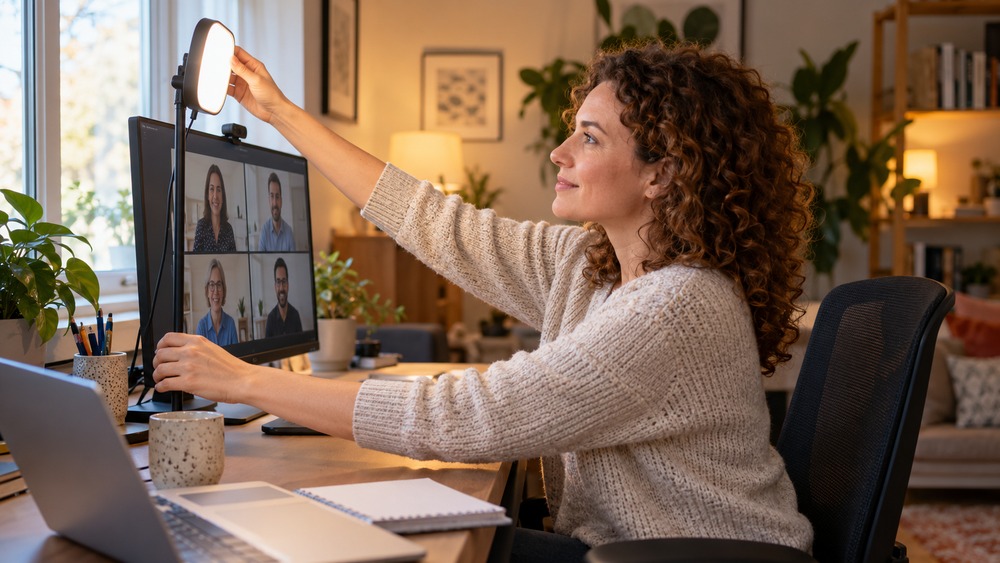
    For clearer video meeting lighting, start with a soft light in front of you and check the camera preview. You may be able to improve the picture by moving a lamp, changing your seat or adjusting blinds before buying new equipment.

    Check the direction of the light

    A strong light behind you can make your face appear dark. Try facing towards a window or another soft source, while avoiding uncomfortable direct glare. Check what happens at the time of day when you normally take calls.

    Use lamps carefully

    A small diffused light near the camera can help in a darker room. Keep stands and cables stable and use equipment according to its instructions. Avoid placing a bright bare light close to your eyes or pointing it straight into the lens.

    Look for reflections and harsh shadows

    Glasses, shiny surfaces and strong overhead lighting can affect the image. Make small changes and compare the preview. A neutral, readable picture is more useful than over-brightening the whole room.

    Check more than appearance

    Leave enough light to work comfortably and read notes. Keep private documents out of view and test sound before the appointment. Good meeting lighting supports a clear conversation; it does not need to turn a home office into a film set.

    Related guide: What Is the Best Online Meeting Platform?.

  • Can You Use a TV for Video Conferencing?

    Can You Use a TV for Video Conferencing?

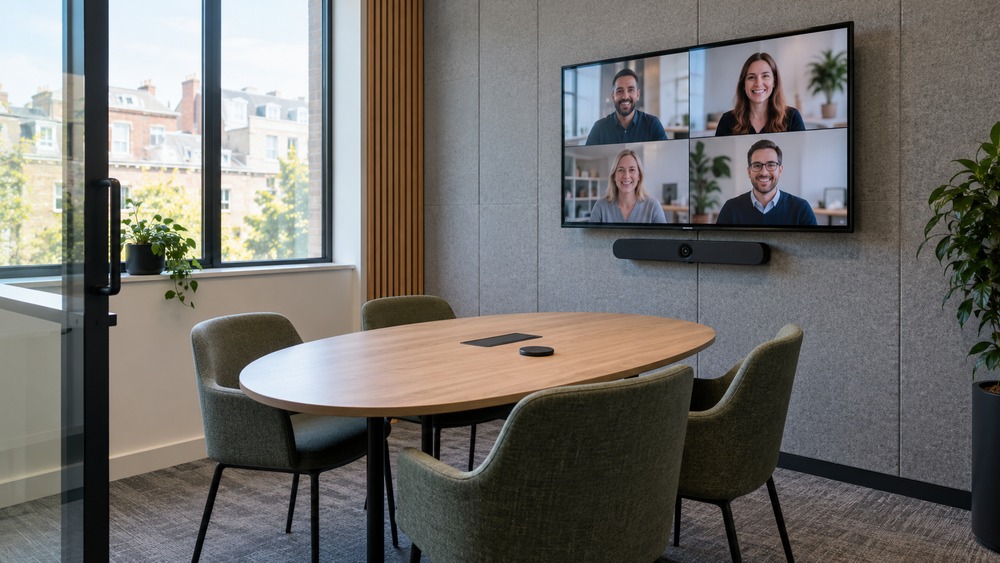
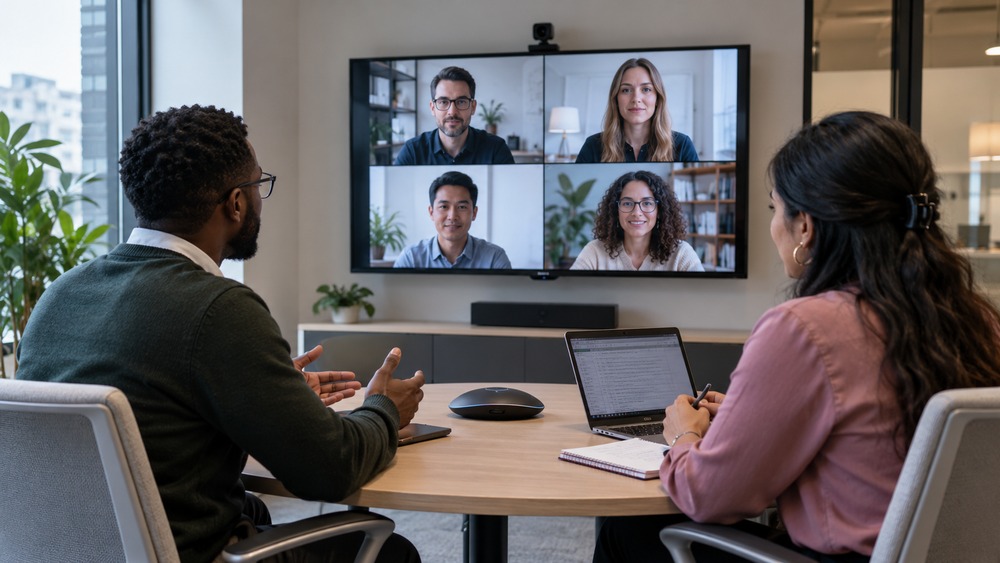
    Yes, a television can often serve as a larger display for a video meeting, provided a compatible device supplies the meeting software. A TV with an HDMI socket does not automatically include the camera, microphone, controls or app support needed for a complete conference system.

    Choose how the meeting will run

    One approach is connecting a suitable computer to the TV as a display. Another is using a dedicated room system. Check the supported connections and software before buying peripherals or assuming the television’s own apps can host the call.

    Place the camera deliberately

    Position a compatible camera where it can show the people attending. A camera sitting far to one side can make conversation awkward. Check the picture from a remote participant’s viewpoint, especially if the table is large.

    Treat sound as a separate task

    TV speakers can play the call, but your microphone still needs to capture the room without an echo loop. Use a suitable audio arrangement and avoid several nearby devices playing the same meeting audio.

    Check reading distance

    A large display is useful only when everyone can read what is shown. Test a typical shared document from the furthest seat. For a recurring office space, compare a planned room setup with an improvised laptop-and-TV arrangement before committing.

    Related guide: What Is the Best Online Meeting Platform?.

  • Can an Online Friendship Feel Like a Real Friendship?

    Can an Online Friendship Feel Like a Real Friendship?

    You have never shared a café table, but you know how their week went. You met through a game, a discussion group or a regular event. The friendship raises a familiar question: how much does the place you meet matter?

    Look at what people actually share

    A friendship may grow through repeated conversations, common interests and showing up for each other. A screen changes how people meet, but it does not make every exchange meaningless. Equally, being in the same room does not guarantee a close connection.

    Repeated meetings offer a starting point

    A one-off event can introduce people. A regular group gives them another chance to talk. Organisers can support that by making introductions easy, keeping the format familiar and giving newcomers a clear way to join without interrupting an established circle.

    Leave room for different preferences

    Some people enjoy voice conversations or virtual spaces. Others prefer messages they can answer in their own time. Do not assume everyone wants to share personal details or appear on camera. Let people decide how much they participate.

    Build a community with care

    Clear rules, useful moderation and a way to report problems help a group function. Encourage people to protect their personal information and take their time getting to know others. The setting can introduce people; the quality of the relationship depends on what they build together.

    Curious about bringing people together remotely? Explore VR Meeting Rooms with OowOah.

  • What Equipment Do You Need for an Office Conference Room?

    What Equipment Do You Need for an Office Conference Room?

    An office conference room needs equipment that lets remote participants hear the whole discussion and see useful detail. The right setup depends on the room, seating and meeting service. Buying a larger display alone rarely answers all of those questions.

    Plan around the room

    Measure the space and identify where people will sit, present and speak. Check power, network access and cable routes. Decide whether the room will use a dedicated meeting system or a participant’s laptop with connected peripherals.

    Choose the audio and camera

    The microphone needs to cover the people who contribute, including those furthest from the table’s centre. The camera should frame the seats and presenter appropriately. An all-in-one bar can simplify some rooms, but its suitability must be checked for that layout.

    Include control and sharing

    People need a clear way to join, adjust audio and show material. Confirm compatibility between the meeting platform, controller, computer and peripherals. Check how visiting presenters will connect without disrupting the room setup.

    Test with remote colleagues

    Run a realistic meeting with people in every usual seat. Ask remote testers about voices, echo and slide readability. Include installation, support and subscriptions in the plan. A well-tested modest room is more useful than equipment chosen only from a specification sheet.

    Official references, checked 16 October 2026: Microsoft Teams Rooms, Zoom Rooms.

    Related guide: What Is the Best Online Meeting Platform?.

  • What Equipment Do You Need for a Video Meeting at Home?

    What Equipment Do You Need for a Video Meeting at Home?

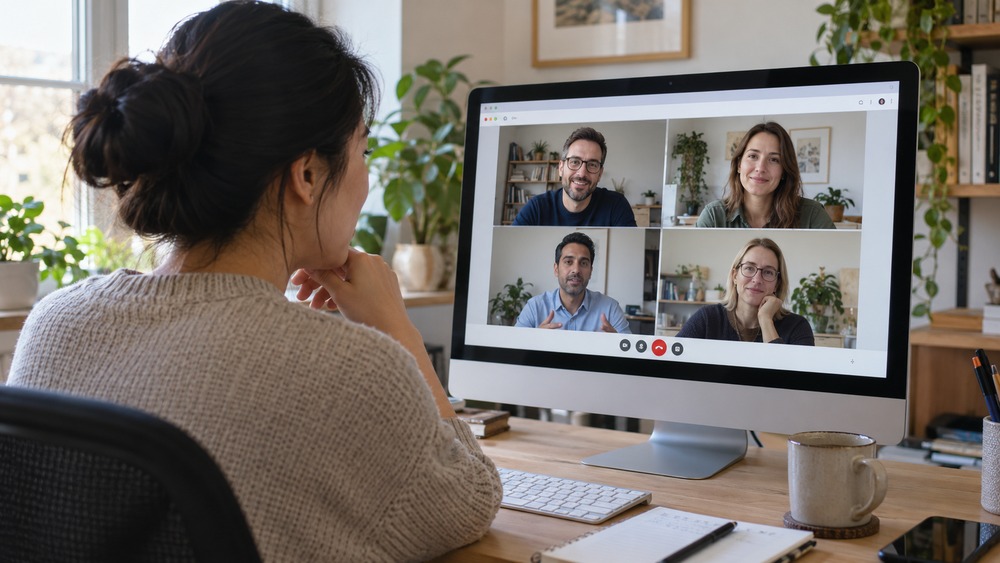
    A practical home video meeting setup starts with a suitable device, working audio, an internet connection and a camera when video is required. You do not necessarily need specialist conference-room hardware. Test what you already own before buying replacements.

    Start with sound

    A headset with a microphone can be a useful option, particularly in a shared room. Check comfort and compatibility with your computer or phone. Select the intended microphone and speaker in the meeting service before joining.

    Make the picture useful

    A built-in camera may be adequate for everyday calls. If its angle is poor, adjust the device position safely before replacing it. A separate webcam can give more flexibility, but placement and light still matter.

    Check the space and connection

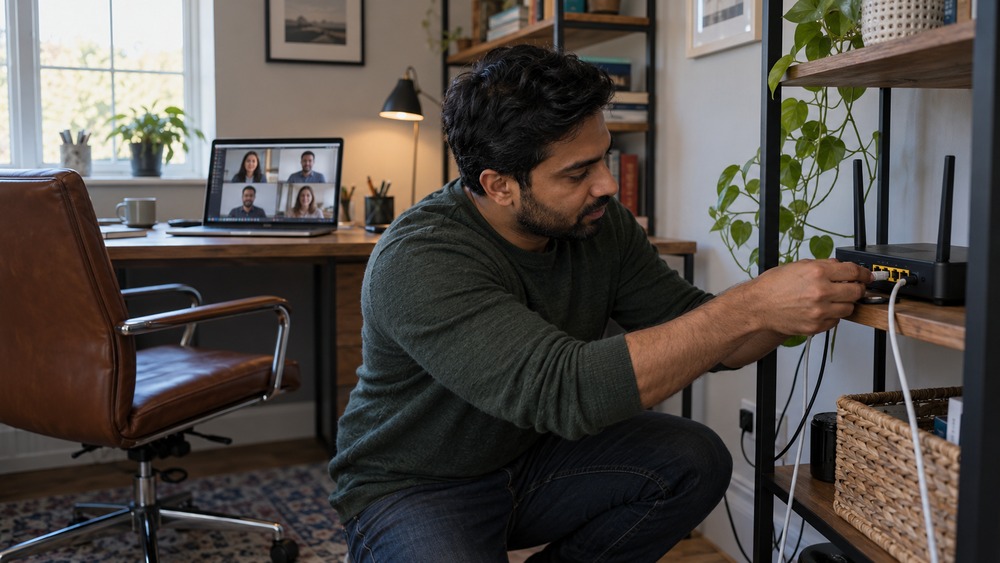
    Choose a place where you can concentrate and avoid exposing confidential material. Test the connection where you will actually sit. If wireless performance is inconsistent, investigate a suitable wired option or another location rather than assuming the meeting app is at fault.

    Keep VR requirements separate

    A headset-based VR room is not the same setup as a laptop video call. OowOah VR Meeting Rooms require supported headsets and account access. Compare the equipment needed for the specific experience instead of buying a general “meeting kit” without a clear purpose.

    Related guide: What Is the Best Online Meeting Platform?.

  • How Do You Set Up a Camera for a Video Call?

    How Do You Set Up a Camera for a Video Call?

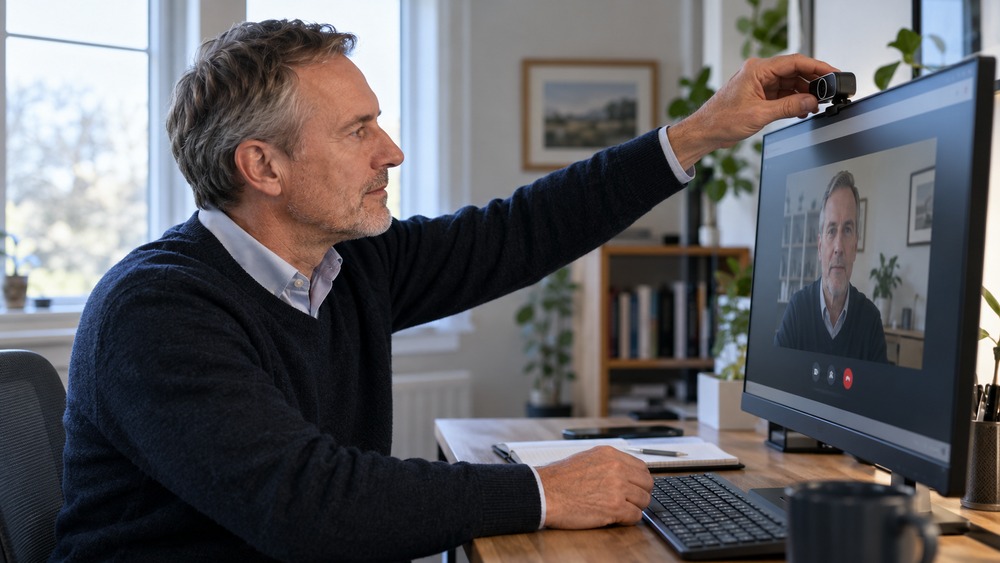
    To set up a camera for a video call, connect or enable it, select it in the meeting service and check the preview before joining. A few simple adjustments to position and light often make the picture more useful than changing expensive equipment.

    Connect and select the camera

    For an external webcam, follow its connection instructions and place it securely. In your meeting service, check that the intended camera is selected. Allow the relevant operating system and browser permissions if prompted. Close another app if it is already using the camera.

    Set the position

    Keep the lens roughly at eye level and frame your head and shoulders comfortably. Check the background for confidential information or distracting activity. Avoid balancing a webcam or laptop on an unstable pile of objects.

    Improve the light

    Face a soft light source where practical. A bright window behind you can make your face hard to see. Check the actual preview rather than assuming the room looks the same through the camera as it does to your eyes.

    Test sound as well

    A clear image does not help if nobody can hear you. Confirm the microphone, use a short test and check the invitation link. Keep the camera setup proportionate to the meeting; the goal is an understandable conversation, not a studio production.

    Official references, checked 16 October 2026: Teams audio settings.

    Related guide: What Is the Best Online Meeting Platform?.