Category: VR Meetings

  • Can I display several documents at the same time in OowOah?

    Can I display several documents at the same time in OowOah?

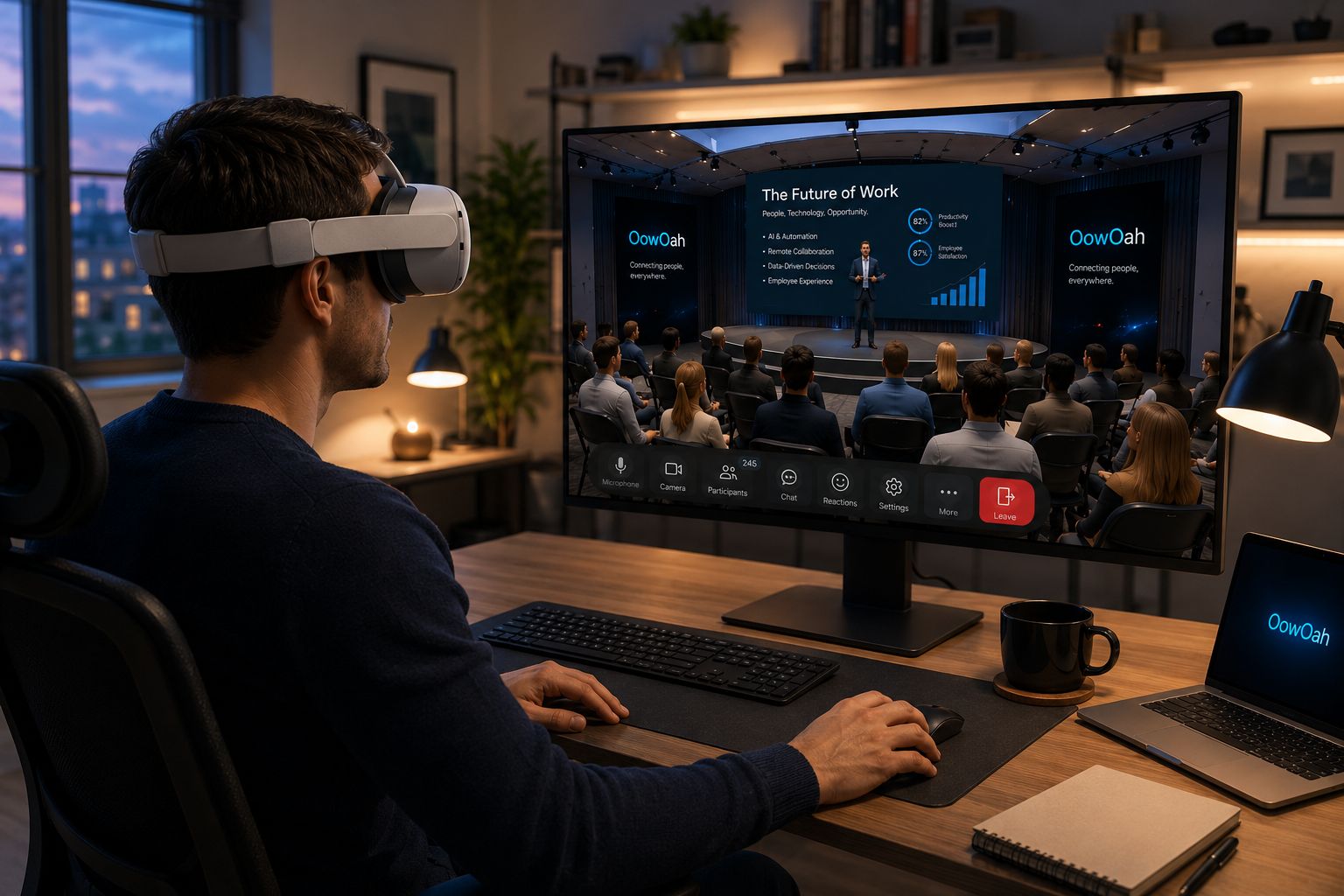
    Yes. OowOah's multiple-screen meeting setup can support discussing several pieces of material during the same session. This is useful when a proposal needs to be considered alongside a report or supporting presentation.

    How can I avoid confusing the group?

    Give the documents clear names and explain which one is the main reference. Show current versions and direct attention to the relevant item while explaining it. The aim is to reduce unnecessary switching, rather than fill every screen simply because it is available.

    Does this include several RTMP feeds?

    No. OowOah supports one RTMP feed at a time. Multiple document or presentation screens should not be described as multiple live broadcast sources. Prepare the meeting around that limit if live content is involved.

    What should be recorded afterwards?

    Confirm which document version the decision refers to and who will act next. Personal notes and AI meeting notes can help preserve the discussion. A recording can also be reviewed later, but the final action should be stated clearly before the session ends.

    Where can I find out more?

    How VR meetings differ from video calls. Visit explore vr meeting rooms for the relevant service information.


  • Can I show PowerPoint presentations in an OowOah VR meeting?

    Can I show PowerPoint presentations in an OowOah VR meeting?

    Yes. OowOah VR Meeting Rooms support PowerPoint presentations. A business can use slides to explain a proposal, report or training topic while the group discusses the material in the shared room.

    How should the slides be prepared?

    Keep the explanation clear and show the material relevant to the current point. Use readable text and leave space for questions. Test the intended presentation before an important meeting so you understand how it appears in the room.

    Can I include live content as well?

    OowOah also supports RTMP feeds, with one RTMP feed at a time. Do not interpret the availability of multiple screens as permission to run several simultaneous live streams. Plan which material the group should focus on at each stage.

    How should the meeting finish?

    Recap the decision or next action and check that the participants agree. OowOah has AI meeting notes and summaries, and meetings can be recorded for later viewing. Those tools support the discussion, while the presenter still needs to make the conclusion clear.

    Where can I find out more?

    How VR meetings differ from video calls. Visit explore vr meeting rooms for the relevant service information.
  • Does my client need an OowOah account to join my VR meeting?

    Does my client need an OowOah account to join my VR meeting?

    No. Only the hosting business needs an OowOah account for OowOah VR Meeting Room invitations. The business can invite clients and other guests to its meetings through the admin panel.

    How does the invitation reach the client?

    The business creates a meeting and adds the attendees. OowOah then sends email invitations. Check the attendee details during setup and make sure the client knows which meeting the message concerns.

    Does the client still need a headset?

    Yes. Every person joining needs their own Meta Quest 3 or Meta Quest 3S. Guest access does not remove the headset requirement. Confirm equipment before making a VR meeting the agreed format for an important presentation.

    Does this also apply to Live VR tickets?

    Public Live VR events use an audience account associated with the event booking. That is a separate service flow. When explaining access, state whether you are inviting a client to a business meeting or asking someone to buy a public event ticket.

    Where can I find out more?

    How VR meetings differ from video calls. Visit explore vr meeting rooms for the relevant service information.
  • How do I invite a client to an OowOah VR meeting?

    How do I invite a client to an OowOah VR meeting?

    Create the meeting in the OowOah admin panel and add the attendees. The system then sends email invitations. This lets the business arrange the session and include clients through the meeting setup process.

    Does the client need an OowOah business account?

    No. Only the hosting business needs an OowOah account for this meeting invitation arrangement. It can invite people outside the business. Do not confuse that with the separate audience account used to book public Live VR events.

    What equipment does the client need?

    Every participant needs their own Meta Quest 3 or Meta Quest 3S. Confirm that before arranging a VR presentation, rather than assuming the client can enter from an ordinary phone or laptop. Explain the meeting format in the invitation context.

    What should I prepare for the conversation?

    Send a clear agenda and tell the client what the session needs to achieve. Prepare any PowerPoint presentation and leave time for questions. If it is their first VR meeting, allow an introduction before beginning the main discussion.

    Where can I find out more?

    How VR meetings differ from video calls. Visit explore vr meeting rooms for the relevant service information.
  • Can I use OowOah with my existing Meta Quest?

    Can I use OowOah with my existing Meta Quest?

    Yes, if your existing headset is a Meta Quest 3 or Meta Quest 3S. Those are the supported OowOah models confirmed for this service. Owning a headset does not mean every Quest model or every other VR device is supported.

    What should I check on my device?

    Confirm the exact model before accepting a meeting invitation. Prepare the device and complete the relevant setup before the meeting starts. If you are uncertain about the model, resolve that first rather than assuming a similar product name means it will work.

    Do I need to buy a separate business account?

    A guest invited to an OowOah VR Meeting Room does not need a separate business account. Only the hosting business needs an OowOah account under this arrangement. It creates the meeting, adds attendees and lets the system send invitations.

    Is public Live VR access the same?

    No. Attending a public Live VR event follows the audience booking and account process. A compatible headset can be used for the relevant OowOah experience, but a business meeting invitation and an event ticket are different forms of access.

    Where can I find out more?

    How VR meetings differ from video calls. Visit explore vr meeting rooms for the relevant service information.

  • Can I use OowOah while sitting down?

    Can I use OowOah while sitting down?

    Yes. OowOah offers seated VR Meeting Rooms, with capacity for 12 people. There is also a standing room format accommodating 30. The seated option means a meeting does not have to be planned as a standing group activity.

    How should I prepare my physical space?

    Choose a suitable seat and follow the headset manufacturer's setup guidance for your surroundings. Make sure you can use the headset comfortably and access its controls. The virtual meeting takes place in a digital room, but you are still wearing equipment in your real environment.

    Which headset can I use?

    OowOah supports Meta Quest 3 and Meta Quest 3S. Everyone participating needs their own headset, including people invited as guests. Prepare it before the scheduled start so the meeting can begin with the discussion rather than equipment fitting.

    How does the invitation work?

    The hosting business creates the meeting in its admin panel and adds attendees. The system sends email invitations. If you have not used the format before, tell the organiser so time can be allowed for an introduction. A seated meeting can still include presentations, conversation and notes.

    Where can I find out more?

    How VR meetings differ from video calls. Visit explore vr meeting rooms for the relevant service information.
  • How many people can join an OowOah VR meeting?

    How many people can join an OowOah VR meeting?

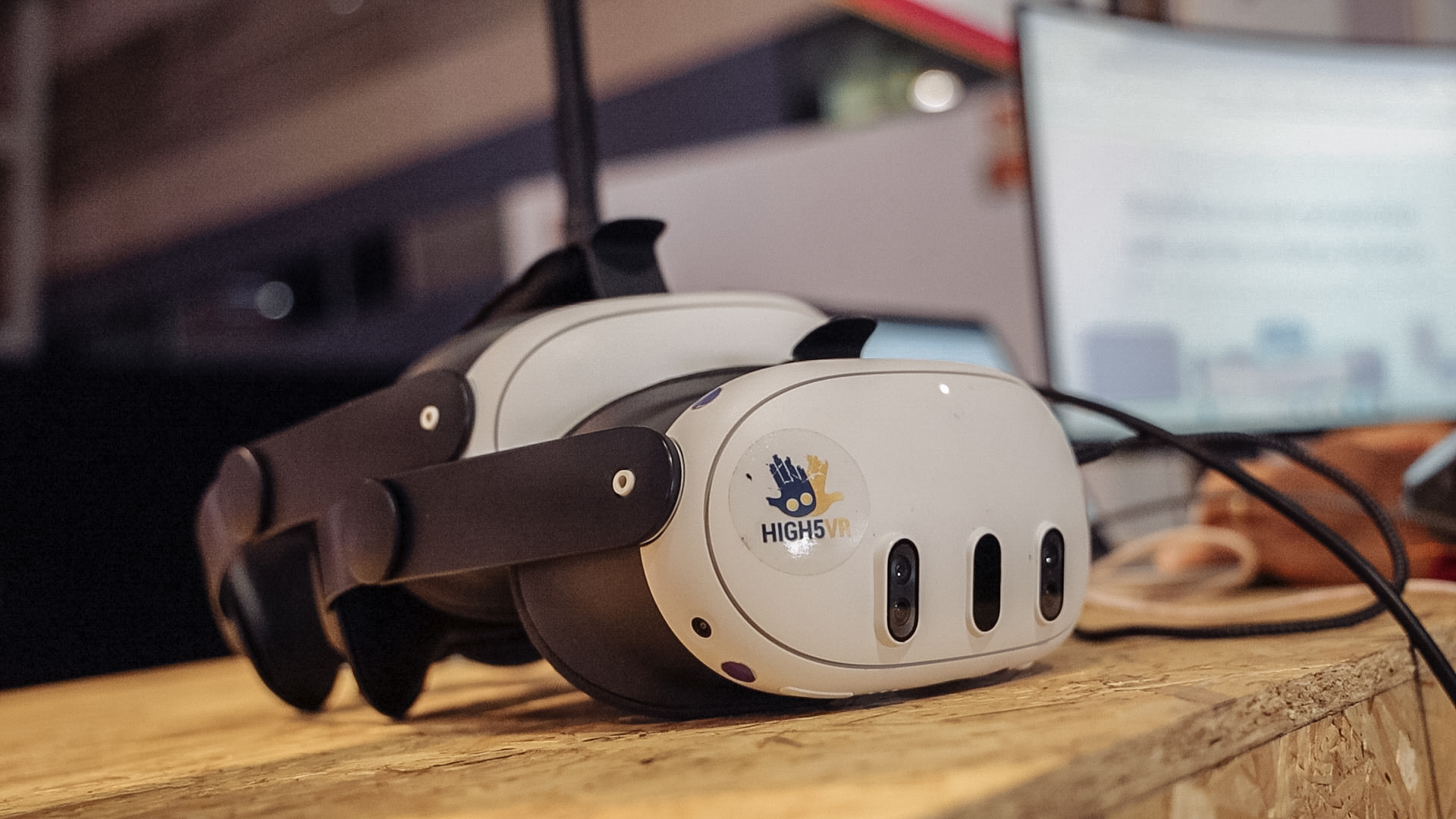
    OowOah VR Meeting Rooms accommodate 12 people seated or 30 people standing. Choose the room format around the purpose of the meeting and the number of people you want to invite. The capacity describes the virtual room, rather than the number of headsets a business owns.

    Which format suits a discussion?

    A seated meeting can suit a smaller group discussing a proposal or presentation. A standing room provides capacity for a larger group. Think about how much time each person needs to contribute and how the presenter will keep the session focused, rather than choosing solely by the maximum number.

    Does everyone need equipment?

    Yes. Every participant needs their own Meta Quest 3 or Meta Quest 3S. Check that before sending the invitation, including for clients and other guests. A place in the virtual room does not provide a physical headset.

    How are attendees invited?

    The business creates the meeting in the admin panel and adds attendees. OowOah then sends email invitations. Only the business needs an OowOah account under this guest invitation arrangement. Confirm the intended attendee list and leave time for first-time participants to prepare.

    Where can I find out more?

    How VR meetings differ from video calls. Visit explore vr meeting rooms for the relevant service information.
  • Does everyone need their own VR headset for an OowOah meeting?

    Does everyone need their own VR headset for an OowOah meeting?

    Yes. Everyone joining an OowOah VR Meeting Room needs their own VR headset. The supported models are Meta Quest 3 and Meta Quest 3S. This requirement applies to the host, colleagues, clients and invited guests.

    Can several people share one headset during the meeting?

    One headset does not provide simultaneous participation for several people. Each person joining the VR room needs a headset of their own for that session. A business planning a group meeting should check equipment availability for the complete attendee list.

    Does each guest need a business account?

    No. Only the hosting business needs an OowOah account for the meeting invitation arrangement. The business creates the meeting and adds attendees in the admin panel, and the system emails invitations. The headset requirement and the business account requirement are separate.

    What should the organiser check first?

    Confirm that invitees have a supported model and understand that the session takes place in VR. Do this before making the format central to an important client conversation. A clear equipment check avoids discovering at the start that someone expected to join from an ordinary browser.

    Where can I find out more?

    How VR meetings differ from video calls. Visit explore vr meeting rooms for the relevant service information.

  • Can people in different countries join the same OowOah VR meeting?

    Can people in different countries join the same OowOah VR meeting?

    Yes. OowOah VR Meeting Rooms bring people in different locations into the same virtual meeting space. A business can invite colleagues or clients abroad without everyone travelling to a shared physical room. Each participant still needs the supported equipment and a working connection.

    How should the time be agreed?

    Give the date and time zone clearly, especially when participants are in several countries. Ask attendees to check their local time and leave enough preparation time before the conversation. A shared virtual room does not remove differences in working hours.

    What does each person need?

    Every participant needs their own Meta Quest 3 or Meta Quest 3S. The business creates the meeting and adds attendees in the admin panel, after which OowOah emails invitations. Only the business needs an OowOah account for this invitation arrangement.

    What can the group do together?

    The meeting can include conversation and PowerPoint presentations. AI meeting notes and summaries are available, and meetings can be recorded for later review. Plan one clear outcome and confirm the next actions before finishing, just as you would when meeting in person.

    Where can I find out more?

    How VR meetings differ from video calls. Visit explore vr meeting rooms for the relevant service information.

  • Can I wear glasses during an OowOah VR meeting?

    Can I wear glasses during an OowOah VR meeting?

    Glasses can be worn with a compatible Meta Quest headset when the frames fit appropriately. This is a headset-fit question rather than a different OowOah account or meeting mode. Check the guidance for your specific Meta Quest 3 or Meta Quest 3S before the session.

    Will every pair of glasses fit?

    Do not assume that every frame fits every headset arrangement. Meta's guidance notes that frame size matters and provides model-specific fitting information. Follow that guidance rather than forcing the headset over glasses or relying on another person's adjustment.

    What should I do before a meeting?

    Try the fit ahead of time and check that you can comfortably read the material shown. Tell the organiser if you need time to adjust the headset before discussion begins. Avoid leaving a first fitting until an important presentation has already started.

    Where can I check the fitting instructions?

    Use Meta's official guidance on wearing glasses with Meta Quest, linked below. It covers the hardware fitting issue. OowOah supports Meta Quest 3 and Meta Quest 3S, and the meeting organiser can help you prepare the joining process separately.

    Hardware guidance:

    Meta: wearing glasses with Meta Quest.

    Where can I find out more?

    How VR meetings differ from video calls. Visit explore vr meeting rooms for the relevant service information.

  • Can my OowOah VR meeting room include my company branding?

    Can my OowOah VR meeting room include my company branding?

    No. Businesses cannot currently add their own logo or company branding to an OowOah VR Meeting Room. Do not plan a meeting on the assumption that the room can be visually customised for your organisation.

    Can I still present my company's material?

    Yes. OowOah supports PowerPoint presentations, so a business can explain its work using its prepared presentation. Showing branded material in a presentation is different from adding branding to the virtual room itself.

    What should I tell a client?

    Describe the shared OowOah meeting environment accurately and focus on what the conversation will cover. Explain the presentation, discussion and headset requirements. Avoid promising a custom-branded room as part of an invitation or sales proposal.

    How do I arrange the meeting?

    The business creates the session and adds attendees in its admin panel. OowOah sends email invitations. Only the business needs an OowOah account for that arrangement, and each participant needs a Meta Quest 3 or Meta Quest 3S.

    Where can I find out more?

    How VR meetings differ from video calls. Visit explore vr meeting rooms for the relevant service information.

  • What Is Video Conferencing, and How Does It Work?

    What Is Video Conferencing, and How Does It Work?

    Video conferencing lets people in different places talk using live sound and video over a network. Participants usually join through an app or supported browser on a computer, tablet or phone. It can be a short call between two people or a larger organised meeting.

    What happens during a call?

    A microphone captures your voice and a camera captures your image. The meeting service carries that information to other participants and brings their sound and pictures back to you. The result depends on the equipment, software and connection at each end.

    What do you need?

    You need suitable access to the meeting service, an internet connection and audio equipment. A camera is needed when you want to appear on video. A headset can help keep speaker sound from returning through your microphone.

    What can you use it for?

    Teams use video meetings for updates, client discussions, interviews and lessons. Sharing a document can give the conversation a common reference, where the service supports it. The organiser should explain how participants are expected to contribute.

    How is a VR meeting different?

    A conventional video call generally shows camera feeds on a screen. A VR meeting can place participants as avatars in a shared digital room. Both are remote formats, but their access requirements and experience differ. Choose according to the task and the people involved.

    Related guide: What Is the Best Online Meeting Platform?.

  • Is Zoho Meeting Free, and What Does It Include?

    Is Zoho Meeting Free, and What Does It Include?

    Zoho Meeting offers a free edition as well as paid plans. Its current pricing page lists up to 100 meeting participants and sessions of up to 60 minutes on the free plan. Check the live plan comparison before arranging an event around those allowances.

    Separate a free plan from a trial

    A trial can expose paid features for a limited period. Those features may not remain available when the account changes to its free edition. Check which plan your account is actually using before telling colleagues what it includes.

    Check your essential features

    Duration and headcount are only the starting point. Confirm the sharing, recording, host controls and other functions your session needs. Use the official feature comparison rather than assuming a feature visible during a trial is always included.

    Test the joining process

    Check your guests’ devices and browser requirements. Allow time for microphone and camera permissions. A successful test on the host’s computer does not establish that an external participant will have the same experience.

    Choose around the task

    The free plan may suit occasional short meetings. Longer sessions or additional controls may justify reviewing paid options. OowOah VR Meeting Rooms are a different, headset-based service with a subscription, so compare the experience and requirements as well as the headline price.

    Official references, checked 16 October 2026: Zoho plans, Zoho system requirements.

    Related guide: What Is the Best Online Meeting Platform?.

  • Is Zoho Meeting Better Than Zoom?

    Is Zoho Meeting Better Than Zoom?

    Zoho Meeting and Zoom can both support online discussions, but the better choice depends on your guests, working habits and subscription needs. Compare their current editions and test the features that matter to your meetings rather than treating either brand as a universal winner.

    Compare meeting length first

    For their free editions, Zoho Meeting currently lists up to 60 minutes and 100 participants, while Zoom Basic lists 40 minutes and 100 participants. That difference may matter for an occasional longer discussion. Paid-plan comparisons need a separate check.

    Try the guest experience

    Send a test invitation to someone outside your business. Check their browser, permissions and device. Browser access and app access can have different requirements, so avoid promising that every feature works identically on every computer.

    Check your essential tools

    Make a checklist for screen sharing, recordings, administration and any workflow connections you need. Check the actual plan and configuration rather than comparing one provider’s free edition with another’s paid service.

    Run a real comparison

    Use the same agenda, document and group in each shortlisted tool. Ask whether guests joined easily and the discussion achieved its aim. If your main interest is working together in a shared virtual room, compare that experience separately from choosing between two conventional video services.

    Official references, checked 16 October 2026: Zoho plans, Zoom Meetings, Zoho system requirements.

    Related guide: What Is the Best Online Meeting Platform?.

  • Can You Join Teams or Zoom Meetings from a VR Headset?

    Can You Join Teams or Zoom Meetings from a VR Headset?

    It depends on the headset, meeting format and supported software. Viewing a normal Teams or Zoom meeting on a screen inside a headset is different from entering an immersive meeting as an avatar. A meeting link alone does not confirm that every headset can join.

    Separate the two experiences

    A virtual screen can show a conventional video meeting while you wear a headset. The call itself may still use the usual video layout. An immersive meeting has a shared digital environment and its own joining process. Ask the organiser which experience the invitation refers to.

    What does Microsoft currently support?

    Microsoft documents a separate Teams Immersive app for supported Meta Quest devices, including Quest 3 and Quest 3S. Its immersive events require an appropriate invitation and account setup; they are not simply an immersive view of any ordinary Teams meeting.

    Microsoft’s support page also states that immersive events will retire on 2 April 2027. This information was checked on 18 October 2026. Read the current official guidance and ask your organisation’s administrator about access before planning around this feature.

    What about Zoom?

    Zoom provides a web app for devices and browsers that meet its requirements. That does not establish compatibility with every VR headset browser. Do not assume a headset is supported because a web page opens or because its browser shares technology with a desktop browser.

    If you use a setup that displays your computer inside a headset, confirm how meeting audio, microphone input and presentation controls work. The meeting may still be running on the computer. We have not verified a universal, standalone Zoom joining method for Meta Quest in this guide.

    Check more than whether you can hear the call

    • Can you sign in and pass your organisation’s access checks?
    • Can others hear you clearly, and what do they see instead of your face?
    • Can you read shared slides and use the controls you need?
    • Can you stop presenting or leave the call without difficulty?
    • Do you have a familiar alternative if the setup fails?

    Where do OowOah VR Meeting Rooms fit?

    OowOah provides its own shared VR meeting-room experience. It should not be treated as a built-in bridge into Teams or Zoom: such an integration has not been confirmed here. Use your existing video platform for suitable calls and consider a separate VR session when the task and participants suit that format.

    Official guidance