Category: News

  • Can You Bring Every Office Together for One Christmas Celebration?

    Can You Bring Every Office Together for One Christmas Celebration?

    When a business has several offices, its Christmas celebration can become several separate occasions. One team gets the big gathering while another receives a photo afterwards. A shared VR session could give colleagues a moment together without requiring everyone to travel.

    Choose a manageable occasion

    A short thank-you, a few team highlights and a light activity may work better than a long formal programme. Decide what the shared session adds to any local celebrations rather than trying to move the whole evening into a headset.

    Check access before sending invites

    For OowOah VR Meeting Rooms, participants need Meta Quest 3 or Quest 3S headsets. Check equipment, simultaneous room capacity and setup time. Offer another way to receive the thank-you if someone cannot take part.

    Let colleagues contribute

    Invite a person from each office to share one memorable moment. Keep the tone friendly and participation optional. Avoid putting quieter colleagues on the spot or making the activity a test of who can operate the technology fastest.

    Finish while people are enjoying it

    Give the session a clear end time. A shared celebration should leave colleagues feeling included and appreciated, with time to enjoy the rest of their evening.

    Find out more about OowOah VR Meeting Rooms.

  • What Is the Best Free Online Meeting Platform?

    What Is the Best Free Online Meeting Platform?

    A free online meeting platform can suit short discussions and occasional calls. The best choice depends on duration, group size and the tools you need. Free access is useful only if its limits fit the meeting you intend to hold.

    Compare the core limits

    At the time of checking in October 2026, Zoom Basic lists 40-minute meetings for up to 100 participants. Google Meet’s no-cost group meetings generally have a one-hour limit, while Zoho Meeting lists up to 60 minutes and 100 participants. See the providers’ linked pages for current terms.

    Check more than the price

    Ask whether guests can join from their devices, how invitations work and which presentation features are included. Recording, transcription and administration may depend on the plan. A free trial of a paid service is different from an ongoing free account.

    Think about recurring work

    If you regularly restart a meeting because time runs out, compare the disruption with a suitable paid option. Do not assume buying a plan is necessary for an occasional short conversation. Choose around the actual pattern of use.

    Where does VR fit?

    OowOah VR Meeting Rooms use a monthly subscription and supported headsets; they are not a permanently free browser calling service. Explore the current trial terms if you want to compare a shared virtual room with your normal video meetings.

    Official references, checked 16 October 2026: Zoom Meetings, Google Meet limits, Zoho plans.

    Related guide: What Is the Best Online Meeting Platform?.

  • Should You Hire a Physical Meeting Room or Use a Virtual One?

    Should You Hire a Physical Meeting Room or Use a Virtual One?

    Hire a physical meeting room when being together in one place helps you do the work. Choose an online or VR meeting when remote participation suits the task and the people attending. Compare access, total cost and the outcome you need before booking either.

    When does a physical room make sense?

    Meeting in person can suit hands-on activities, physical equipment demonstrations or discussions where the group prefers being together. Check the venue’s accessibility, location, capacity, sound and equipment. A room that looks attractive in a photograph may not support the session you are planning.

    Count more than the room-hire price

    Include transport, parking, accommodation where needed, refreshments and staff travel time. For example, six people spending an hour travelling each way adds 12 person-hours of travel. That is an illustrative calculation, not an estimate of every meeting’s cost.

    Understand the virtual choices

    A video meeting uses screens and cameras. A VR meeting room provides a shared digital space through compatible headsets. A physical conference room equipped for Teams or Zoom is another arrangement again. These options involve different equipment and participation needs.

    Compare the practical requirements

    Question What to check
    Can everyone attend comfortably? Travel access, connection, devices and any alternative participation arrangements.
    What must people do? Discuss documents, examine physical objects, practise a task or make a decision.
    What is the total cost? Room hire and travel, or software, headsets, setup and support.
    What could interrupt the session? Transport delays, venue limitations, connection problems or device unfamiliarity.

    Make the choice meeting by meeting

    You do not need to replace every in-person meeting. Keep physical sessions where they help, use a video call for a straightforward conversation and try a VR room for a defined collaborative task. OowOah VR Meeting Rooms use a monthly subscription; compare the current service details and headset requirements before deciding.

    Afterwards, ask whether the group achieved its purpose and whether the arrangements were comfortable. Use that feedback when choosing the next venue or format.

  • How Does Cisco Webex Compare with Teams and Zoom?

    How Does Cisco Webex Compare with Teams and Zoom?

    Cisco Webex, Microsoft Teams and Zoom can all support online meetings. The useful comparison is how well each fits your guests, existing software and administration needs. Compare the exact plans you would buy rather than assuming one brand wins every category.

    Compare a real meeting, not just a feature list

    Invite the same colleague to a test call on each shortlisted platform. Ask them to join as an external guest, find the microphone controls and view a shared document. Check the devices and connection people actually use.

    Look at the working environment

    Platform What to investigate
    Webex Guest access and compatibility with your organisation’s Cisco equipment and services.
    Microsoft Teams How meetings fit your organisation’s Microsoft accounts, calendars and shared documents.
    Zoom Guest familiarity and the plan, settings and integrations needed for your meeting workflow.

    These are evaluation questions, not claims that a feature is exclusive to one service. Existing contracts and support arrangements can change the decision.

    Check free allowances before a trial

    As checked on 16 October 2026, the providers’ pages list Webex Free at up to 100 attendees and 40 minutes per meeting, Zoom Workplace Basic at up to 100 participants and 40 minutes, and Teams Free at up to 100 participants and 60 minutes. These are free-plan allowances, not a comparison of paid business editions. Check current regional terms before relying on them.

    Check the requirements that matter

    Confirm recording access, captions, guest restrictions, storage and administrator controls against your chosen licence. Ask who will manage accounts and help attendees who cannot join. Compare the overall cost of the required setup, including any hardware or support.

    Where does a VR meeting room fit?

    A headset-based shared virtual room is another meeting format to evaluate for suitable collaborative sessions. It can sit alongside everyday video calls. Consider headset access, comfort and the task before choosing it; no single format suits every appointment.

    Official guidance

  • How Do You Share Your Screen from a Mac?

    How Do You Share Your Screen from a Mac?

    To share your Mac screen during an online meeting, use the meeting app’s sharing control and allow the required macOS screen access. Choose the window or display you want attendees to see. Connecting a Mac to a television is a different task from presenting in a meeting.

    Start with your meeting app

    Open the presentation, join the call and find its Share or Share Screen control. The label differs between Teams, Zoom, Webex and other services. Select the relevant window or display, then confirm the preview before you start speaking.

    Allow the right app in macOS

    On current macOS versions, open the Apple menu, select System Settings → Privacy & Security → Screen & System Audio Recording. Allow the meeting application you are using. If the meeting runs in a browser, check the browser’s permission instead. Older versions may use a different settings label.

    Return to the app and follow any prompt to apply the change. You may need to reopen it. Test beforehand so a permission prompt does not interrupt a client presentation.

    Choose what attendees can see

    A single window is useful for a document or demonstration within one application. A full display is useful when moving between several tools. If you have an external monitor, check its contents before selecting it. Presenter notes should stay outside the audience’s shared view.

    Treat audio as a separate check

    A visible video does not guarantee that attendees can hear it. Check your meeting app’s instructions for sharing computer sound and test a short clip. Avoid assuming that turning up the Mac’s speakers will provide clear audio to everyone else.

    If the screen appears blank

    Check the selected window, app permission and any browser sharing prompt. Ask whether the organiser has enabled presenting for your role. Keep a copy of the key slides or a document link available so the discussion can continue while you resolve the sharing problem.

    Finish by stopping the share and confirming that your desktop is no longer visible.

    Official guidance

  • How Do You Share Your Screen on Microsoft Teams?

    How Do You Share Your Screen on Microsoft Teams?

    In a Teams meeting on a computer, select Share in the meeting controls, then choose a screen or a window. Check that the audience can see the correct content before you begin. The available options depend on your device, version and meeting permissions.

    Prepare before selecting Share

    Open the document or presentation you want to discuss. Close private material and pause notifications. If you use two monitors, check which one contains the audience view and which contains your notes.

    Follow these steps

    1. Join the Teams meeting and open the material you will present.
    2. Select Share in the meeting controls.
    3. Choose the specific window, or select a screen if you need to move between applications.
    4. Ask one attendee whether the shared content is visible and readable.
    5. Select Stop sharing when you finish.

    Choose a window or a screen

    A window keeps the presentation focused on one application. Sharing a whole screen makes switching between applications easier, but anything displayed on that screen may become visible. Think about what your next click will reveal.

    Remember sound and Mac permissions

    If you are playing a video, check the audio-sharing option and test it first. Mac users may need to allow Teams to access screen recording in macOS privacy settings. Browser users may also need permission for the browser.

    What if sharing is unavailable?

    Ask the organiser to check your presenter role and the meeting’s sharing restrictions. Confirm that you are using a supported app or browser. Microsoft’s current guidance lists Chrome and the latest Edge for Teams web screen sharing. Follow the official instructions for your device rather than repeatedly changing unrelated settings.

    Help people follow the presentation

    Use readable text, explain where you are looking and pause for questions. Screen sharing makes your material visible; a clear discussion helps people use it. For more presentation planning, see our guide to why screen sharing alone is not enough.

    Official guidance

  • When Should You Send an Update Instead of Holding a Meeting?

    When Should You Send an Update Instead of Holding a Meeting?

    Send a written or recorded update when people mainly need information and can respond later. Hold a meeting when they need to resolve uncertainty together, make a decision or discuss something that benefits from a conversation.

    Ask what would happen in the call

    If everyone would listen while one person reads through progress, start with an update. Explain what changed, what is blocked and what help you need. A concise message can let colleagues respond around their own work and time zones.

    Understand synchronous and asynchronous work

    Synchronous communication happens together in real time, such as a phone call, video meeting or VR discussion. Asynchronous communication lets people contribute at different times, such as an email, a shared document or a recorded demonstration. Neither is automatically better: the task decides.

    Make an update easy to act on

    Put the main point first. Link to the relevant document, name the person who needs to respond and give a reasonable deadline. For a recording, include a short written summary so someone does not have to watch the whole video to discover the question.

    For example: “The client has approved the layout. Please check the two remaining colour options in the linked file and add your preference by Thursday at noon.” That is more useful than an unexplained invitation to a progress call.

    Recognise when a conversation would help

    Meet when a decision has competing requirements, a misunderstanding is growing or several people must work through an unfamiliar problem. Sensitive discussions may also need a direct conversation. Repeated long message threads can be a sign that a short call would help.

    Use both formats together

    Send background information first, then use the meeting for the unresolved question. Finish with a written decision and named actions. If a group chooses a VR meeting room for collaborative work, the same principle applies: spend the live session on the part that needs people together.

  • How Long Should a Webinar Last?

    How Long Should a Webinar Last?

    A webinar should last long enough to deliver its promised outcome, with time for questions and a clear finish. There is no single ideal duration for every audience. A short product introduction and a detailed training session need different agendas.

    Choose the outcome before the duration

    Write down what someone should understand or be able to do afterwards. If the answer is one simple task, a compact demonstration may be enough. If you are introducing several ideas, consider separate sessions rather than filling a longer slot.

    Try an agenda you can actually rehearse

    For a 30-minute introduction, you might allow three minutes for the welcome, 17 for the main explanation, eight for questions and two for the next steps. This is a planning example, not a research-backed rule. Rehearse it aloud and adjust it to your subject.

    A 45-minute session could reserve more time for demonstrations and discussion. A longer workshop may need activities and breaks. Tell attendees the total commitment before they register, including whether questions happen during or after the presentation.

    Leave room for the audience

    Build in a useful question, a short exercise or a chance to check understanding. Do not rely on a packed slide deck to keep people involved. Give a moderator responsibility for questions so the presenter can stay focused.

    Check the format and platform separately

    A software time limit is not an agenda. Check the host account’s allowance before sending invitations. A webinar suits presenting to an audience; a smaller collaborative discussion may suit a meeting format. If you want people working together in a shared virtual setting, explore whether a VR meeting would fit that task.

    Improve the next session

    Afterwards, compare the actual finish time with the promise on the invitation. Ask whether attendees had enough time to understand and contribute. Remove material that did not support the outcome before making the next webinar longer.

  • What Can You Use a Meta Quest for at Work Besides Meetings?

    What Can You Use a Meta Quest for at Work Besides Meetings?

    A Meta Quest can provide access to more than meetings, depending on the device and the applications you choose. Potential uses include training experiences, demonstrations and immersive viewing. Hardware ownership alone does not provide every business function or a licence to every app.

    Explore task-specific training

    A purpose-built training application can provide scenarios suited to its learning objective. Check the content, assessment and access arrangements rather than assuming a general meeting app contains a complete training course. Some tasks still require physical practice.

    Try demonstrations and presentations

    A suitable application may help a team explain material or review an idea. Confirm which formats and tools it supports before preparing content. A headset display does not automatically mean that a service includes native 3D editing or every kind of file viewer.

    Consider first-person collaboration and events

    OowOah Quantum Leap brings a live real-world perspective into a VR meeting. OowOah Live VR provides a separate audience experience for compatible 360° event broadcasts. Both need their own supported setup and should not be confused with an ordinary video call.

    Introduce the equipment carefully

    Choose one useful task, confirm software compatibility and give users time to learn the controls. Include comfort, access and the total cost in a small evaluation. A productive use of a headset is one that helps people do their work, rather than adding technology without a clear benefit.

    Related guide: What Is the Best Online Meeting Platform?.

    Explore Quantum Leap first-person collaboration.

  • How Do Ticket Sales Work for Live VR Events?

    How Do Ticket Sales Work for Live VR Events?

    A Live VR ticket gives a remote attendee access to the event experience described in its listing. For a physical event with an added VR audience, the viewing offer should be clearly distinguished from a seat in the venue. Clear information reduces misunderstandings before booking.

    Describe the experience accurately

    Include the speaker, subject, date, time zone and ticket price. State the headset requirement and explain whether the offer is live viewing, a replay or both. Do not imply that watching in 360° provides unrestricted movement or networking features.

    Set the organiser’s price

    The organiser chooses what to charge. OowOah applies a 15% service charge to ticket and replay sales. For an illustrative £20 ticket, that service charge is £3, leaving £17 before the organiser’s other costs and any applicable adjustments. This is not a profit calculation.

    Plan the access instructions

    Tell ticket holders how to sign in and find the event, and provide a route for support questions. Check the organiser’s current account and event setup process before publishing an invitation. Access instructions should be tested before the session starts.

    Keep the event finances separate

    Budget for capture equipment, connectivity, rights and production as relevant. Check the applicable booking, cancellation and refund terms rather than inventing promises in a blog. Speaker registration opens on 10 November 2026, so current invitations should reflect that launch stage.

    Related guide: What Are the Best Virtual Event Platforms?.

  • How Can Keynote Speakers Add a Live VR Audience to Their Events?

    How Can Keynote Speakers Add a Live VR Audience to Their Events?

    A keynote speaker can consider adding live VR viewing to an event already taking place in a venue. The physical audience remains central, while a compatible 360° camera supplies a viewpoint for remote headset attendees. Plan the remote offer with the organiser before promoting access.

    Agree what the ticket includes

    State the session, viewing position, start time and supported headset. Explain any replay separately. Watching a keynote in 360° does not automatically include a meet-and-greet, backstage access or two-way conversation with the speaker.

    Coordinate the production

    Check permission to stream the presentation and any included material. Place the camera where it captures a useful view without obstructing venue guests. Test slide visibility, lighting and speech from the remote viewer’s position during rehearsal.

    Brief the presenter

    Mention the remote audience in the welcome and explain important activity outside the camera’s view. Clear speech and readable visual material help. Do not make the venue performance revolve around the camera at the expense of the audience in the room.

    Prepare the commercial offer

    OowOah Live VR uses a 15% service charge on ticket and replay sales, without a registration or monthly platform fee for organisers. Equipment and production remain separate considerations. Speaker registration opens on 10 November 2026; plan the session and contact arrangements before that date.

    Related guide: What Are the Best Virtual Event Platforms?.

  • Can You Run a Training Workshop in a VR Meeting Room?

    Can You Run a Training Workshop in a VR Meeting Room?

    A VR meeting room can provide a setting for a trainer-led workshop when its presentation and discussion tools fit the lesson. It is different from commissioning a bespoke training simulation. Begin with the learning objective and design an activity that the supported room can deliver.

    Choose an appropriate objective

    A discussion of a workplace scenario, a review of a proposal or an explanation followed by questions may suit a shared room. Practical skills requiring physical equipment need a different plan. Do not assume a virtual setting recreates hands-on experience.

    Prepare a small sequence

    Introduce the task, show readable material and let learners explain their decisions. Keep activities short enough for people to follow comfortably. Give participants a separate introduction to the headset and room before assessing learning.

    Check participation arrangements

    Confirm the equipment, accounts and simultaneous access required. Plan how learners ask questions and how you notice someone needs help. Use another route where VR is unsuitable. A trainer still needs to facilitate the session rather than relying on the environment to create engagement.

    Evaluate what learners understand

    Use a relevant task or discussion afterwards to check understanding. Ask about comfort and clarity as well as enjoyment. OowOah VR Meeting Rooms can support a suitable workshop, while purpose-built simulations, automated assessment or specialist training content need their own confirmed requirements.

    Related guide: What Is the Best Online Meeting Platform?.

    Explore Quantum Leap first-person collaboration.

  • What Should You Look for in VR Collaboration Software for Business?

    What Should You Look for in VR Collaboration Software for Business?

    Choose VR collaboration software around a real task and the people who need to take part. A convincing virtual room is only one part of the decision. Equipment access, readable material, administration and comfort determine whether the software is practical for your business.

    Start with the workflow

    Describe a typical review, presentation or workshop. Check how participants join, view information and contribute. Ask for a demonstration using your actual material rather than assuming every product supports interactive 3D models or specialist simulation.

    Check access and administration

    Confirm supported headsets, account arrangements and the number of people who can use the service at the same time. Review user management and any recording or transcription requirements. A feature described as “secure” still needs to meet your organisation’s specific policies.

    Plan for comfort and alternatives

    Include people with different levels of VR experience in a short trial. Ask about readability, control and physical comfort. Arrange another way to contribute if a headset is unsuitable; equipment should not become a barrier to an important decision.

    Measure the result

    Agree what would make the test worthwhile before starting. Compare clarity, contribution, setup effort and total cost with a familiar format. OowOah VR Meeting Rooms are one option to assess through that practical process, rather than choosing on a feature count alone.

    Related guide: What Is the Best Online Meeting Platform?.

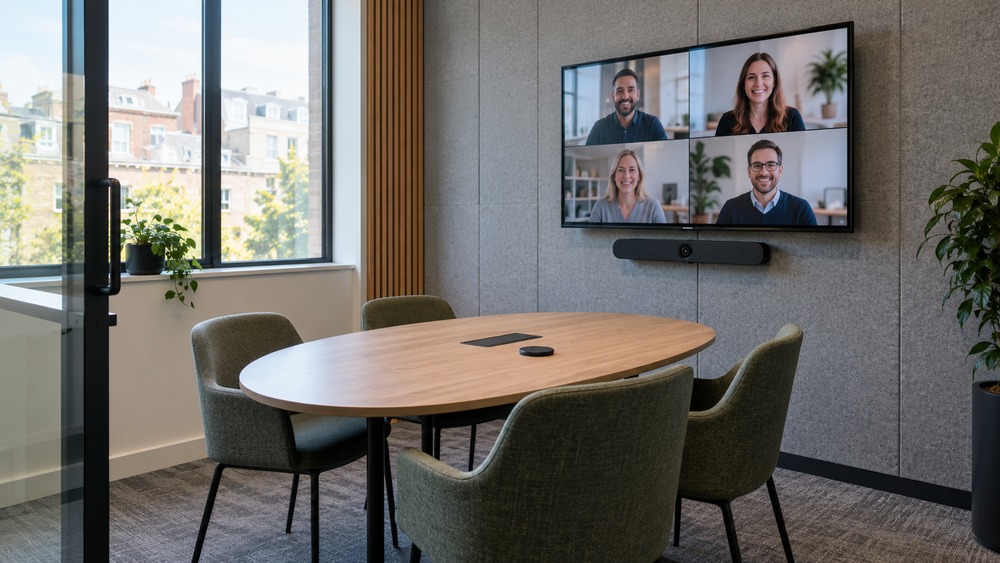
  • How Do Microsoft Teams Rooms and Zoom Rooms Compare for Hybrid Offices?

    How Do Microsoft Teams Rooms and Zoom Rooms Compare for Hybrid Offices?

    Microsoft Teams Rooms and Zoom Rooms are designed to support meetings in physical spaces with remote attendees. Compare the platform your organisation uses, compatible equipment and room management requirements. The best choice for one office may create unnecessary complexity in another.

    Start with your existing environment

    If staff and guests already use one service heavily, its room workflow may be easier to adopt. Test external invitations as well as internal calls. Do not assume every cross-platform meeting retains the same features as a native call.

    Compare complete room proposals

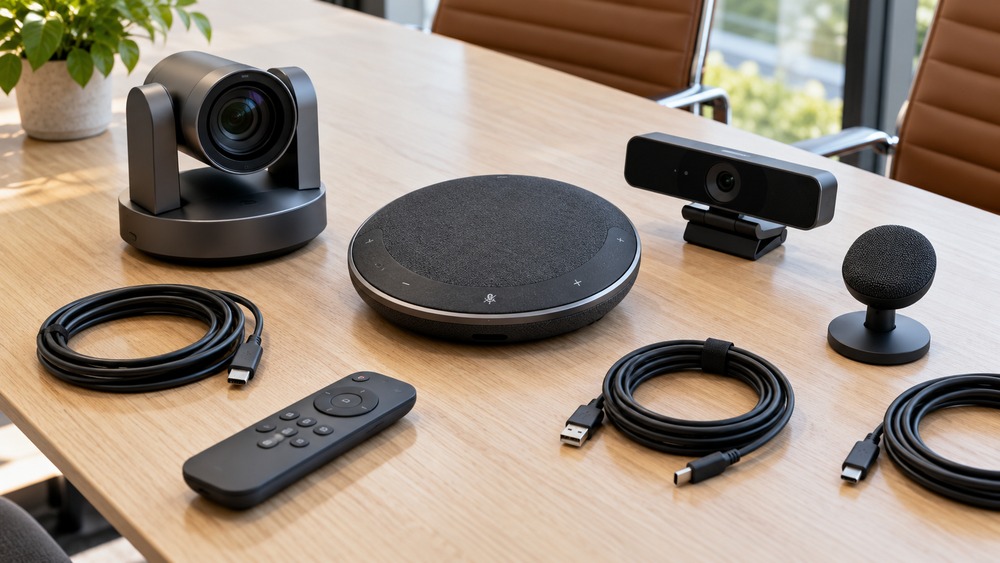
    Ask for a room-appropriate camera, microphone coverage, display arrangement, controller and installation plan. Check the equipment against the provider’s current compatibility guidance. Compare support and management needs, not just a device bundle’s headline price.

    Check the licence and guest experience

    Room software and individual user accounts are different purchases. Editions and included functions vary. Request current UK pricing and clarify hardware, tax, installation and recurring charges before treating two quotes as comparable.

    Consider whether a physical room is the right investment

    A team that already gathers in an office may benefit from a dedicated room system. Distributed people may also consider a headset-based VR meeting space. OowOah provides that different experience; it is not a hardware bundle that turns a boardroom into Teams Rooms or Zoom Rooms.

    Decision Teams Rooms Zoom Rooms
    Primary environment Teams meeting workflows Zoom meeting workflows
    Hardware Check supported devices for your room Check supported devices for your room
    Costs Compare licence, hardware, installation and support Compare licence, hardware, installation and support
    Guest calls Test the exact invitation and joining route Test the exact invitation and joining route

    Official references, checked 16 October 2026: Microsoft Teams Rooms, Zoom Rooms.

    Related guide: What Is the Best Online Meeting Platform?.

  • How Much Does a Video Conference Room Setup Cost?

    How Much Does a Video Conference Room Setup Cost?

    A video conference room setup has several costs: equipment, installation, recurring software and ongoing support. There is no single reliable price without knowing the room and requirements. Compare complete proposals so a cheap-looking kit does not conceal important missing work.

    List the one-off work

    Include displays, cameras, microphones, speakers, a controller or host computer, mounts and cabling as needed. Add network preparation, installation, configuration and testing. Reusing equipment may reduce costs, but only when it is appropriate and compatible.

    Include recurring costs

    Check room licences separately from individual user subscriptions. Ask about support, maintenance and replacement arrangements. Request current pricing, tax treatment and contract terms from the supplier rather than treating an online headline as a complete quotation.

    Use a transparent example

    Suppose a planning exercise allows £900 for equipment, £300 for installation and £150 for network work. The one-off total is £1,350. These are illustrative figures, not market quotations. Recurring charges and any applicable tax must be added separately.

    Compare the type of room

    Physical Teams Rooms or Zoom Rooms equipment serves people gathered in a venue. A VR meeting room serves participants through headsets. OowOah’s published meeting price is £12.99 per simultaneous headset space per month, with compatible headsets purchased separately. They are different investments, so compare around the work rather than the shared word “room”.

    Illustrative allowance Amount
    Equipment £900
    Installation and configuration £300
    Network work £150
    One-off example total £1,350
    Subscriptions, support and tax Assess separately

    Official references, checked 16 October 2026: Microsoft Teams Rooms, Zoom Rooms.

    Related guide: What Is the Best Online Meeting Platform?.