
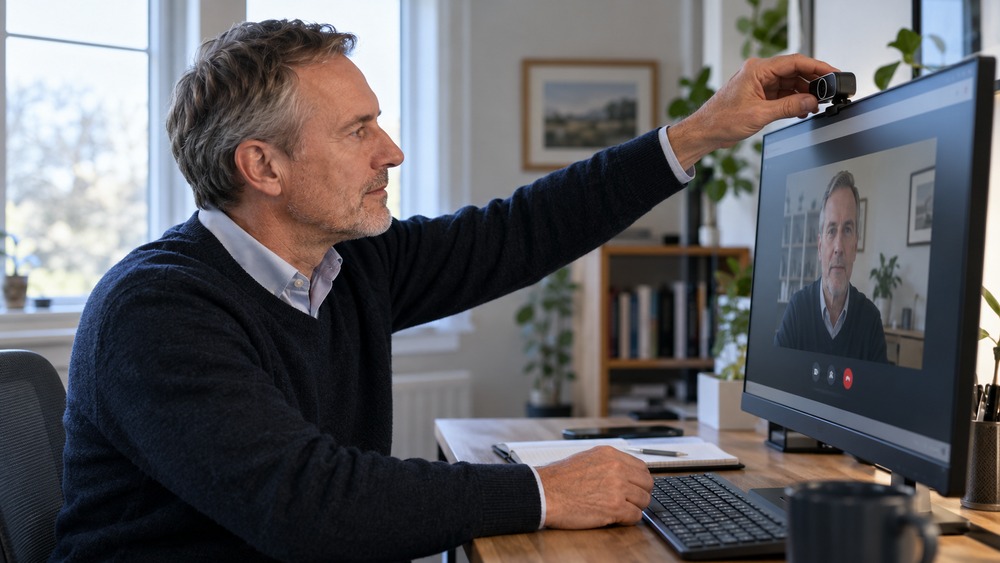
To set up a camera for a video call, connect or enable it, select it in the meeting service and check the preview before joining. A few simple adjustments to position and light often make the picture more useful than changing expensive equipment.
Connect and select the camera
For an external webcam, follow its connection instructions and place it securely. In your meeting service, check that the intended camera is selected. Allow the relevant operating system and browser permissions if prompted. Close another app if it is already using the camera.
Set the position
Keep the lens roughly at eye level and frame your head and shoulders comfortably. Check the background for confidential information or distracting activity. Avoid balancing a webcam or laptop on an unstable pile of objects.
Improve the light
Face a soft light source where practical. A bright window behind you can make your face hard to see. Check the actual preview rather than assuming the room looks the same through the camera as it does to your eyes.
Test sound as well
A clear image does not help if nobody can hear you. Confirm the microphone, use a short test and check the invitation link. Keep the camera setup proportionate to the meeting; the goal is an understandable conversation, not a studio production.
Official references, checked 16 October 2026: Teams audio settings.
Related guide: What Is the Best Online Meeting Platform?.